
Video Compressor & Converter
TarrySoftVideo Players & Editors
4.52.08K Reviews
- Version
- 4.0.1
- Installs
- 10.00M
- Age Rating
- Everyone
Screenshots
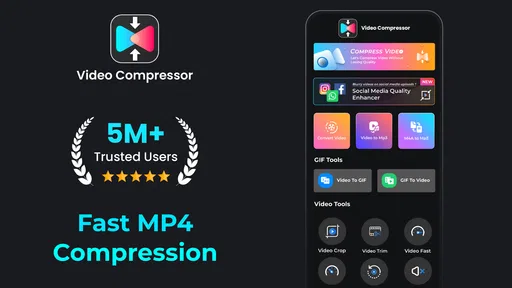
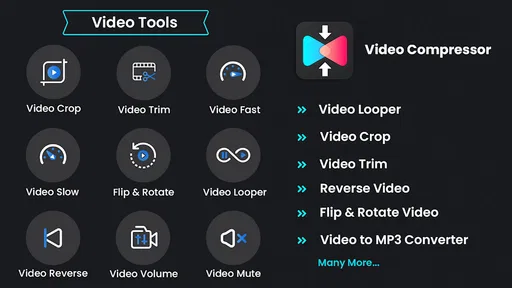
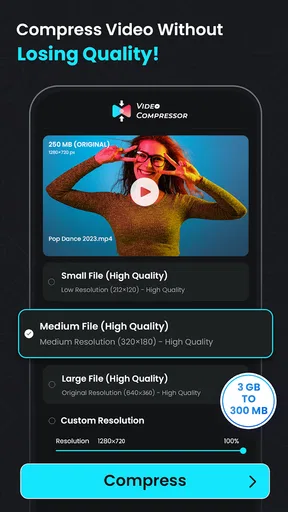
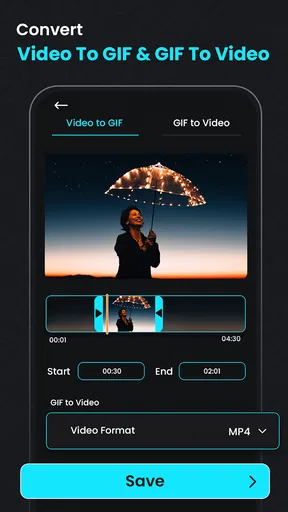
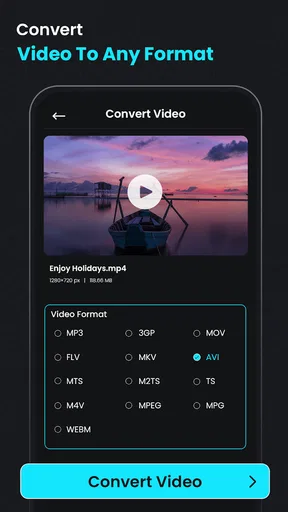
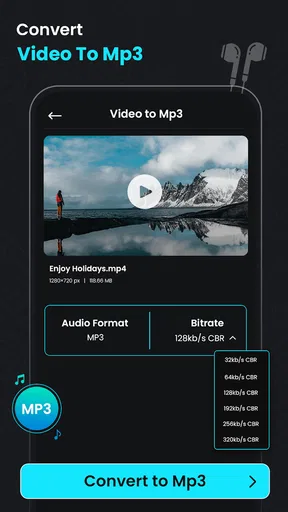
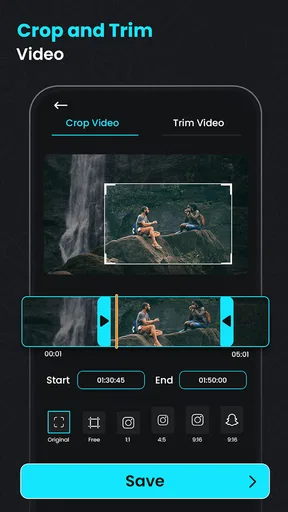
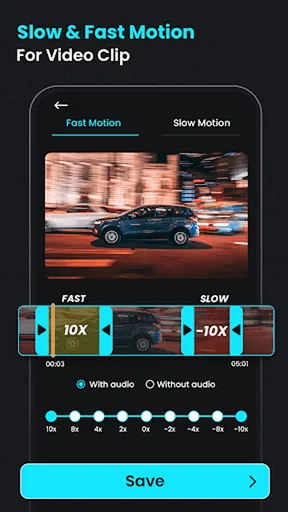
Our Review of Video Compressor & Converter
 Analysis by Appyee
I reach for a video utility when a clip is too large to send, takes up space I need, or needs a simple change before I share it. That practical focus is what makes Video Compressor & Converter worth considering. It is a free video tool from TarrySoft, and its current version is 4.0.0. The app is rated for Everyone, so it is aimed at a broad audience rather than professional editing workflows.
What it is good for in everyday use
The strongest reason to use a compressor is usually a specific problem, not a desire to edit a whole film. A long clip from a family gathering, a school event, or a weekend trip may be awkward to send because of its file size. Reducing that file before sharing can make the task more manageable, while keeping a copy of the original gives you a way back if the smaller version looks too soft.
I would also use a converter when a video refuses to play in the app or on the device where I need it. Converting a file can help with compatibility, but it is worth checking the destination first: if the original already plays everywhere you need it, conversion adds another processing step without much benefit. For simple trimming or reversing, this app’s focused tools may be more convenient than opening a full editing suite.
Compression is a trade-off, not a magic fix
Smaller files generally mean some compromise in visual detail, so I would not treat compression as a free way to reclaim space. The useful question is whether the saved space matters more than preserving every fine detail. A clip intended for a quick chat or a small phone screen can often tolerate more reduction than footage you plan to keep, edit, or watch on a large display.
My practical tip is to keep the source file until you have checked the compressed result and confirmed that it is the version you want to share. Look closely at motion, dark scenes, and small text or faces; these are the kinds of details that can make a reduced video feel noticeably worse. If the result is not good enough, try a gentler setting rather than repeatedly compressing an already compressed copy.
Who will appreciate the focused tools
This is a sensible choice for people who want to shrink, crop, reverse, or convert clips without learning a complicated timeline editor. Its Video Players & Editors category covers a broad range of apps, but this one is best approached as a handy file-preparation tool: make a targeted adjustment, save a usable copy, and move on.
On the other hand, I would look elsewhere if I needed layered editing, detailed color work, titles, transitions, or precise audio mixing. A dedicated editor gives more control over a finished video, while a phone’s built-in gallery tools may be enough for a quick trim. Choosing the lightest tool that solves the actual problem is often faster than importing every clip into an editor.
First Impressions
When I first opened Video Compressor & Converter, the sleek and intuitive interface caught my attention. The app clearly focuses on user experience, which is a big plus. With just a few taps, I was ready to start compressing and converting my videos. The app is designed to be straightforward, making it easy for anyone to navigate without a steep learning curve.
Features that Stand Out
The real powerhouse of this app lies in its features. The compression tool is incredibly effective. I managed to reduce a 1GB video to just under 100MB without any noticeable loss in quality. This is perfect for freeing up space on your device or for those times when you need to send videos over messaging apps that have size restrictions.
Moreover, the conversion tool is equally impressive. It supports a wide range of formats, so whether you need MP4, AVI, MOV, or any other format, this app has you covered. I was particularly impressed by how quickly it converted a batch of videos, saving me a ton of time.
Ease of Use
One of the most appealing aspects of this app is its simplicity. You don’t need to be a tech wizard to use it. The app guides you through each step, from selecting the video to choosing the desired output format and quality. It’s as easy as selecting options from a menu.
Plus, the app offers a preview feature that lets you see how your video will look post-compression or conversion. It’s a small detail, but incredibly useful for ensuring your videos maintain the quality you need.
Performance and Speed
I was quite pleased with how swiftly the app performed. Compressing and converting videos can sometimes be a lengthy process, but this app handles tasks efficiently without hogging your device’s resources. Even with large files, it didn’t take long at all, which is a massive relief if you’re in a hurry.
Additional Perks
Beyond compression and conversion, the app also offers some nifty editing tools. You can trim videos, adjust resolution, and even tweak audio settings. While it’s not a full-fledged video editor, these features are handy for quick edits on the go.
Another cool feature is the app’s ability to share directly to social media or cloud storage platforms. This integration makes sharing your newly compressed or converted videos a breeze.
Checking the result before sharing
A useful workflow is to treat the preview as a decision point rather than a final formality. Watch the beginning and end, where an accidental crop or trim is easiest to notice, then jump to a busy section with movement. If the clip contains speech, listen for whether voices remain clear after the change. A file can look acceptable in a thumbnail but disappoint once played, especially when the subject moves quickly.
For a message attachment, I would make a separate smaller copy rather than overwrite the original. That gives me a share-ready version while keeping the higher-quality recording for later. If I am preparing a clip for storage instead, I would be more conservative: the space saved today may not be worth losing detail I might want when viewing it on a bigger screen.
Choosing between this app and other options
Compared with a general-purpose mobile editor, this app’s appeal is its narrow, practical job. It is more direct when the task is reducing a file or changing its format, while an editor is the better choice for arranging scenes, adding captions, or shaping a polished story. Built-in gallery tools can be quicker for a basic trim, but they may not cover the same file-preparation needs. I would choose based on the task rather than expect one app to replace all three approaches.
The store information shows a 4.5 average from around 162,000 ratings, and more than 10 million installs. That scale suggests the app has found an audience among people with everyday video-handling needs, though popularity alone cannot tell you whether its output settings suit your particular clips. It is free to install, with optional in-app purchases ranging from $0.99 to $99.99 per item, so I would check the purchase details in the app before committing to anything paid.
Small habits that prevent frustrating results
Before starting a batch, I would test the settings on one representative clip. A quiet indoor recording and a fast-moving outdoor video can react differently to the same compression choice. Testing the most demanding clip first helps avoid discovering at the end that the selected output is too blurry or that the file still does not meet the sharing limit.
It also helps to be clear about the destination. If a messaging service or upload form imposes a file-size ceiling, aim for a result comfortably below it instead of right on the edge. If compatibility is the issue, prioritize a format the receiving device can play rather than choosing a format just because it is familiar. These small checks reduce the chance of doing the work twice.
Limits and practical expectations
A compact utility cannot remove every inconvenience of working with video. Large source files still take time to process, and the final quality depends on the source and the settings chosen. Compression cannot restore detail that was missing from the original, and converting a clip does not automatically make it look better. For demanding edits or a carefully finished project, I would use a proper editor and treat this app as a preparation step, if needed.
Version 4.0.0 is the current release, while the app first appeared on October 8, 2020. Those facts give a useful sense of its history, but they do not tell me what any future release will add. For existing users, the practical question is whether the current tools still fit their routine; I would check the version on my device before following instructions written for another release, since screens and options can change over time.
When I would choose it—and when I would not
I would recommend trying it if you regularly move phone videos between apps, need smaller copies for sharing, or want a few direct editing actions without a full production workflow. It is also approachable for someone who has never adjusted video settings and wants to work through a simple selection-and-preview process.
I would skip it if your main goal is cinematic editing, precise control over every export parameter, or a guaranteed file size and quality outcome for professional delivery. In those cases, a dedicated editor or desktop tool is likely a better fit. For occasional trimming only, your phone’s existing gallery may be enough. The right choice depends on whether compression and conversion are recurring problems or merely one-off tasks.
Final Thoughts
Overall, Video Compressor & Converter is a fantastic tool that combines ease of use with powerful features. Whether you’re trying to save space on your device or need to convert videos for different platforms, this app has got your back. It’s user-friendly, efficient, and an essential tool for anyone dealing with video files regularly.
If you’re interested in giving Video Compressor & Converter a try, you can find it on both the Google Play Store and Apple’s App Store. Trust me, once you start using it, you’ll wonder how you ever managed without it!
Verdict
Strengths of Video Compressor & Converter
- User-friendly interface for quick navigation.
- Supports a wide range of video formats.
- Fast compression without quality loss.
- Batch processing saves time.
- Customizable settings for advanced users.
Limitations of Video Compressor & Converter
- Free version has ads that can be intrusive.
- Limited features without premium upgrade.
- Occasional crashes on older devices.
- Large files may take longer to process.
- No cloud integration for direct uploads.
Other Releases by TarrySoft
View All
Pixel 4D™ Live Wallpapers
Personalization4.7

Wallpapers HD - Backgrounds 4K
Personalization4.8

Photo Collage Maker & Editor
Photography4.7

Cleaner - Clean Phone & VPN
Tools4.6
Similar Picks in This Category
View All
Google TV
Google LLC3.9

iTunes
Apple4.7

YouTube
Google LLC3.8

MX Player
Amazon Mobile LLC4.2

CapCut - Video Editor
Bytedance Pte. Ltd.3.5

PLAYit-All in One Video Player
PLAYIT TECHNOLOGY PTE. LTD.4.5
Frequently Asked Questions
What formats does Video Compressor & Converter support?
Video Compressor & Converter supports a wide range of video formats, including MP4, AVI, MOV, MKV, and WMV. This ensures compatibility with most devices and platforms. Additionally, it can handle various audio formats when converting video files, making it a versatile tool for all your media needs.
Can I adjust the compression settings manually?
Yes, Video Compressor & Converter allows users to manually adjust compression settings. You can choose the output resolution, bitrate, and quality level to balance between file size and video quality. This feature provides flexibility, enabling users to tailor the compression to their specific requirements.
Does the app support batch processing?
Absolutely, the app supports batch processing, allowing users to compress or convert multiple videos at once. This feature is particularly useful for those who need to process large collections of videos, saving time and effort by automating repetitive tasks and ensuring consistency across all files.
Is there a limit on the video file size for compression?
Video Compressor & Converter does not impose a strict limit on video file size for compression. However, extremely large files may require more processing time and sufficient device storage. The app is designed to handle high-resolution videos efficiently, but results may vary based on device capabilities.
Are there any in-app purchases or premium features?
The app offers a free version with essential features, but there are in-app purchases available for advanced functionalities. Premium features may include higher compression speed, additional format support, and removal of ads. Users can evaluate the basic version before deciding to upgrade for enhanced capabilities.
